

Product settings
This is where you set everything about a single product: how it looks to the customer, how it renews, and what its plans include.
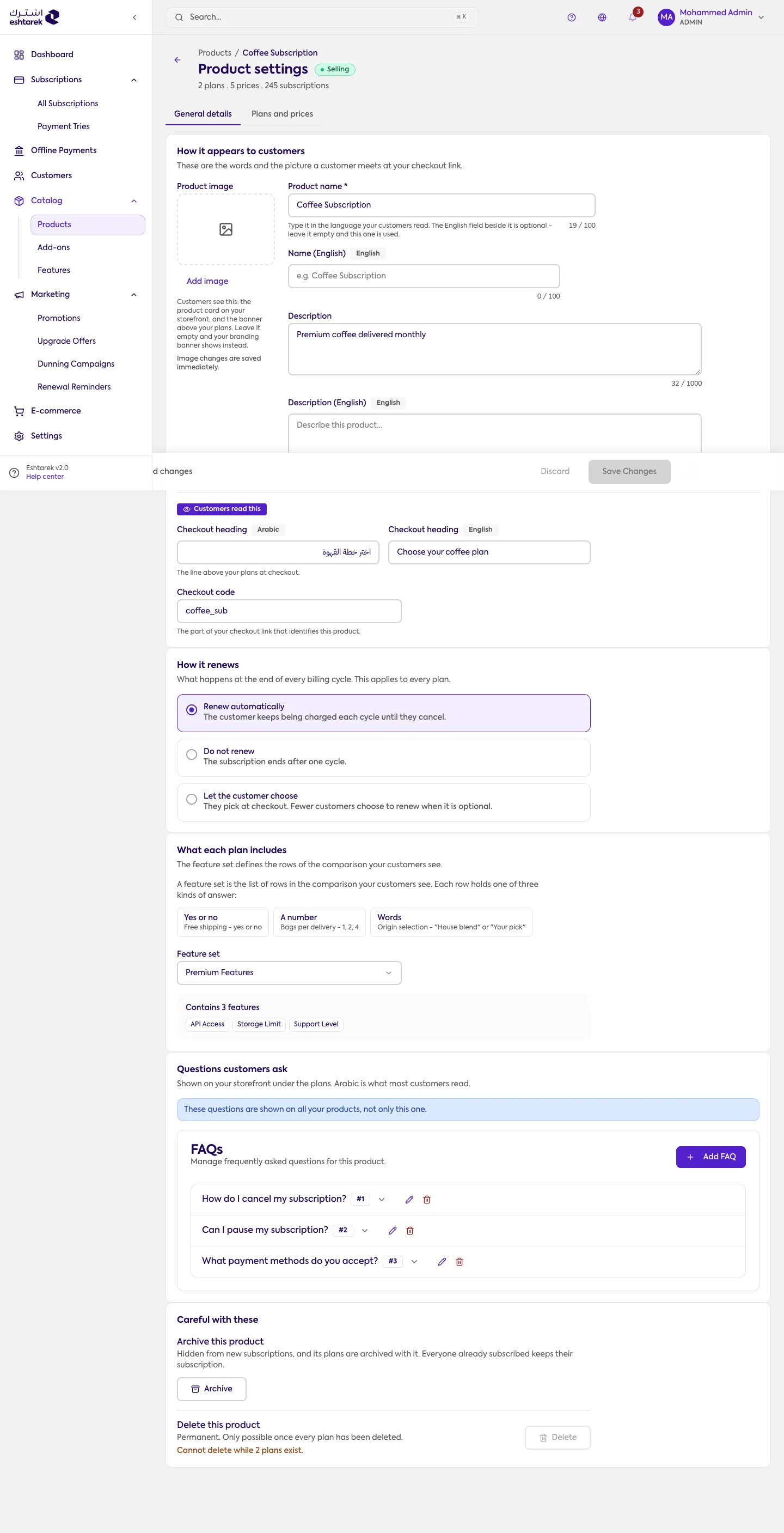
What this screen is
Section titled “What this screen is”You reach it with Edit Product from the products table. The page has two tabs:
- General details: everything described below.
- Plans and prices: the product’s plans. Each plan has its own page for managing prices.
Under the product name, a line reminds you of its size: how many plans, prices and subscriptions.
The sections
Section titled “The sections”- How it appears to customers: the product image, its name, its description, the checkout page heading, and the checkout code. Name, description and heading each have an Arabic field and an English one; English is optional, and leaving it empty falls back to Arabic. The checkout code is the part of the checkout link that identifies this product.
- How it renews: three options that apply to all of the product’s plans. Renews automatically keeps charging until the customer cancels. Does not renew ends the subscription after one cycle. Let the customer choose puts the decision at checkout.
- What each plan includes: the feature set decides the rows of the comparison table your customer sees. Each row is one of three kinds: yes or no, a number, or text.
- Questions customers ask: the FAQs for this product, shown beneath its plans in your store. This product’s questions only, not all of them.
Take care with these at the bottom: archiving hides the product from new subscriptions and archives its plans with it, while anyone already subscribed stays subscribed. Deleting is permanent and is only possible once every plan is gone.
What happens after you save
Section titled “What happens after you save”Changes are not saved automatically. A bar at the bottom of the page shows where you stand: saved, or Save changes and Discard when something is pending. The product image is the exception: it saves as soon as you upload it.
After saving, changes reach your customers immediately.
If something goes wrong
Section titled “If something goes wrong”- The delete button will not click: the product still has plans. The reason is written under the button.
- A plan is added but not showing: open the plan page and check it has an active price and an active status.
- The comparison table is not showing to customers: it needs a feature set and at least two plans.